MSINFO32: How To Use the Windows System Information Tool Like a Pro
Go to MSINFO32 Center
1. Introduction
When it comes to diagnosing hardware issues or checking system configuration, most Windows users overlook a powerful built-in tool—msinfo32. Officially named Microsoft System Information, this utility offers a centralized view of everything running on your PC, from hardware resources to software environments.
2. What Is msinfo32?
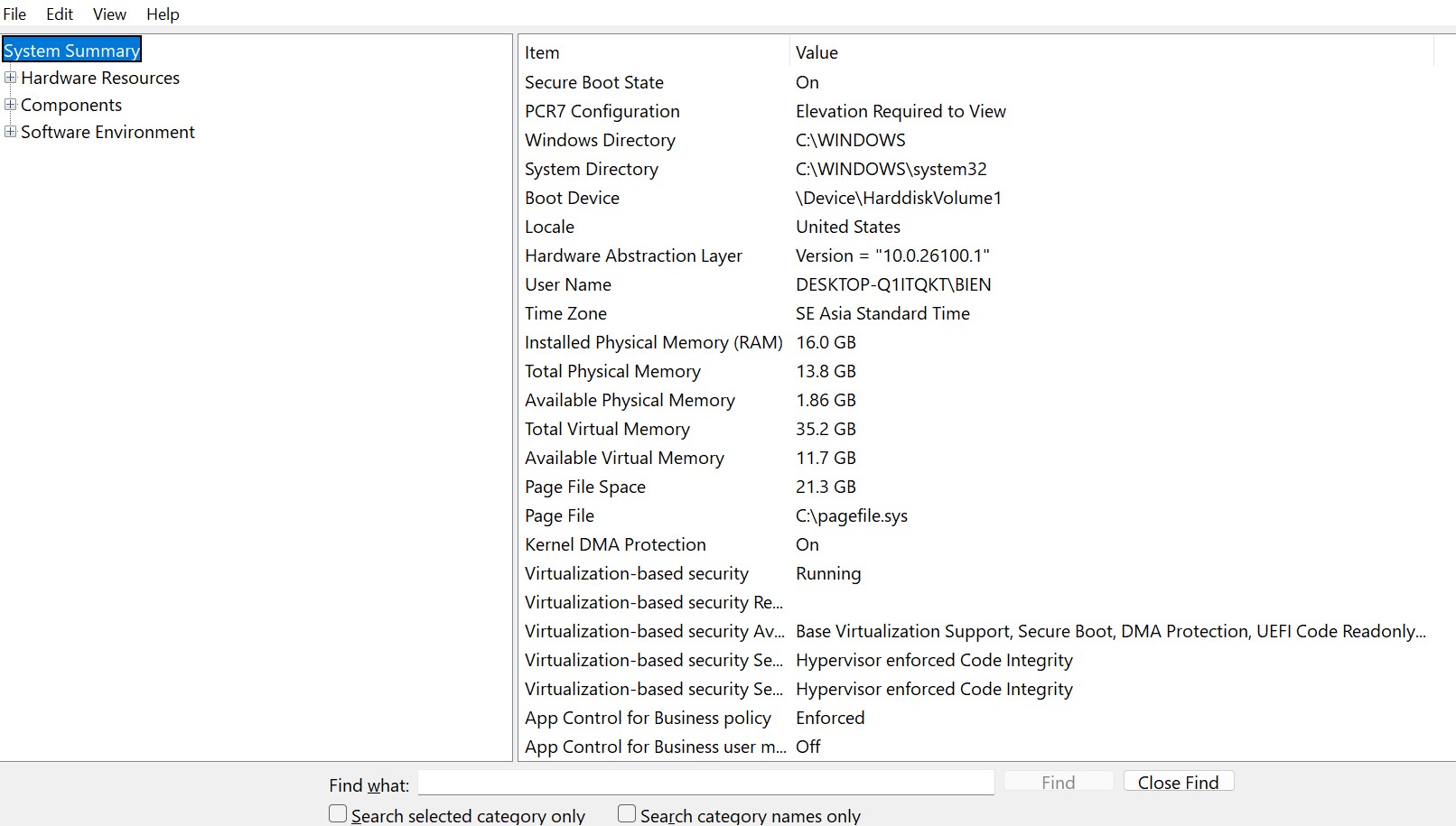
msinfo32.exe is a system utility included in all modern Windows operating systems. It allows users to view comprehensive details about their computer’s hardware, software, and components in one place.
3. Why Use msinfo32?
msinfo32, also known as System Information, is an essential built-in Windows tool that provides a comprehensive overview of your system’s hardware, software, and environment. Whether you're troubleshooting an issue or performing a system audit, this tool can save time and effort.
🔍 Instant Access to System Specs
Get detailed information about your processor, memory, motherboard, BIOS, and operating system without installing third-party software.
🛠️ Troubleshoot Hardware Problems
Quickly identify problem devices, memory conflicts, or driver issues. This is especially helpful when diagnosing startup failures or hardware malfunctions.
📁 Monitor Drivers and Services
Review driver load status, digital signatures, and services running in the background. Ideal for detecting compatibility problems or corrupted files after updates.
🧠 Analyze Software Environment
View startup programs, environment variables, system tasks, and more. Understand what’s running under the hood of your system.
📤 Export Reports Easily
Generate a full system report and export it as a .txt or .nfo file. This is extremely useful for remote troubleshooting or sharing with IT support.
✅ Lightweight and No Installation Required
msinfo32 is built into all modern versions of Windows. It’s fast, simple, and doesn’t require admin rights for most tasks.
4. How to Open msinfo32
Method 1: Run Dialog
Press Windows + R, type msinfo32, and press Enter.
Method 2: Start Menu
Search for "System Information" and click the result.
Method 3: Command Prompt or PowerShell
msinfo32Method 4: Export a Report
msinfo32 /report C:\Users\YourName\Desktop\sysinfo.txt5. Key Features of msinfo32
The msinfo32 utility offers a detailed snapshot of your system’s configuration. Its interface is divided into logical sections, making it easy to navigate and retrieve valuable data for diagnostics, troubleshooting, and system management.
🖥️ System Summary
Provides an overview of essential system details, including the Windows version, system manufacturer, model, processor type, BIOS version, installed RAM, and system type (32-bit or 64-bit).
⚙️ Hardware Resources
Displays low-level hardware information such as DMA channels, IRQ assignments, I/O ports, and memory addresses. Useful for detecting hardware conflicts or resource allocation issues.
💾 Components
Offers detailed data on physical components like the display adapter, sound devices, storage drives, optical drives, input devices, network adapters, and more.
🧩 Software Environment
Lists key system processes and settings, including running services, loaded drivers, environment variables, startup programs, network connections, and system error logs.
📤 Export Functionality
Allows users to export the entire system report in text (.txt) or native (.nfo) format, which can be shared with support teams or saved for future reference.
🔎 Search and Navigation
Includes a built-in search feature to help you quickly locate specific system details without scrolling through each section manually.
6. Use Cases for msinfo32
- Pre-installation system checks
- Diagnosing driver issues
- Documentation for system migration
- Generating logs for tech support
7. Exporting System Reports
To export a report:
- Open
msinfo32 - Go to File > Export
- Save the .txt file to your preferred location
8. msinfo32 vs Other Windows Tools
| Tool | Purpose | Format |
|---|---|---|
| msinfo32 | System-wide diagnostics | Tree GUI / .txt |
| dxdiag | DirectX & audio/video info | GUI / .txt |
| Device Manager | Driver management | GUI |
| Task Manager | Performance monitoring | Tabbed GUI |
9. Common Errors & Fixes
- msinfo32 won't open: Try running it as Administrator or use
sfc /scannow. - Missing data: Check for corrupt Windows components or update your OS.
10. Tips for Advanced Users
- Use
/nfoto save in native .nfo format - Combine with
dxdiagfor full diagnostics - Schedule exports for system audits
- Use in remote sessions for support
11. Conclusion
msinfo32 is an incredibly useful yet underutilized tool in Windows. It helps you monitor, diagnose, and document your system quickly and effectively—no additional software required. Whether you're a regular user or IT pro, it's a must-know utility in your toolkit.
12. Frequently Asked Questions (FAQs)
- Q: Is msinfo32 safe?
A: Yes, it’s a Microsoft tool included in all Windows installations. - Q: Does it require admin rights?
A: Not always, but some areas may be restricted. - Q: Is it available on Windows 11?
A: Yes, fully supported. - Q: Can it monitor performance in real time?
A: No, it’s for system overview, not real-time metrics. - Q: How is it different from dxdiag?
A: dxdiag focuses on graphics/audio; msinfo32 covers full system info.
© 2025 Msinfo32 Guide
Technical information